We have recently made some changes and enhancements to your Nurture Cycle as part of a larger refresh project.
In addition to dripping the Nurture Cycle's weekly, monthly, and quarterly white-labeled content, you can now also:
- View Latest Emails
- Analyze Email Performance
- Enable/Disable the Welcome Email
- Preview & Skip Upcoming Emails
Customize and Select Default Calls to Action
You now have the ability to not only customize the available Calls to Action which appear on all Nurture Cycle emails, but you can also set a default Call to Action to use on all Nurture Cycle emails that come from you.
To customize your available Calls to Action and select your default go to Settings > Nurture Cycle Settings.
Here you can tailor the message text and button title that will appear as the Call to Action on your Nurture Cycle emails for each available option.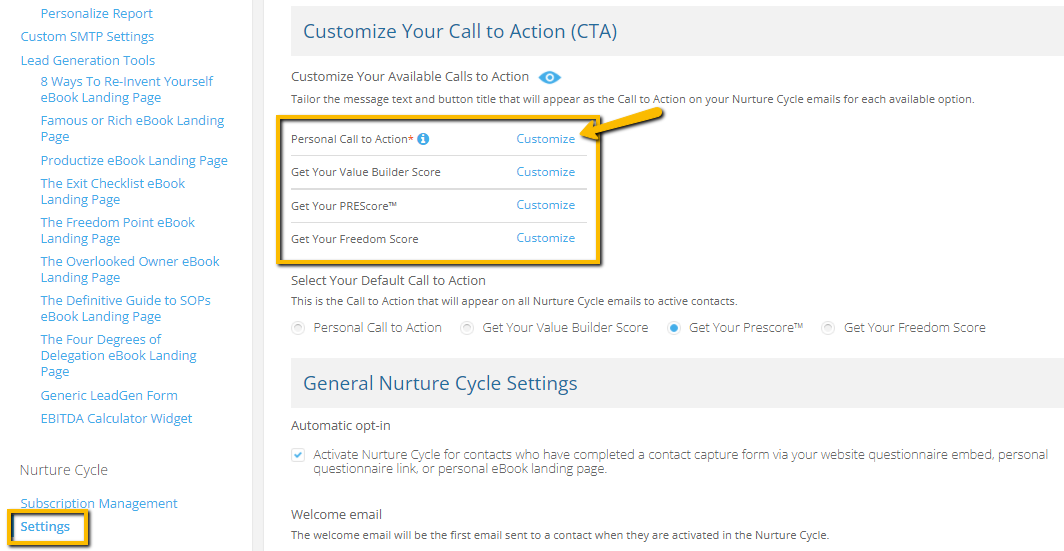
Select the default Call to Action that will appear on all Nurture Cycle emails sent to active contacts.
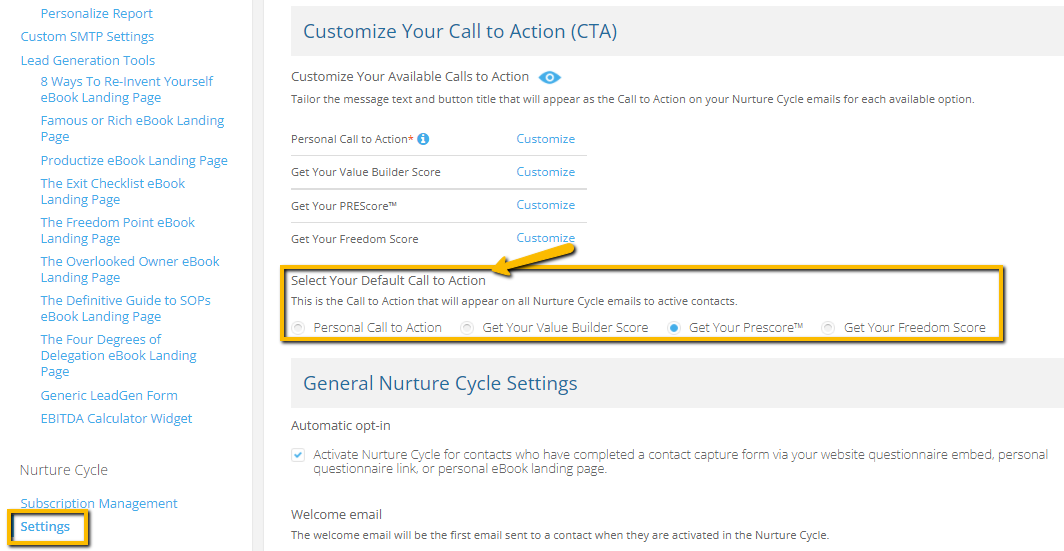
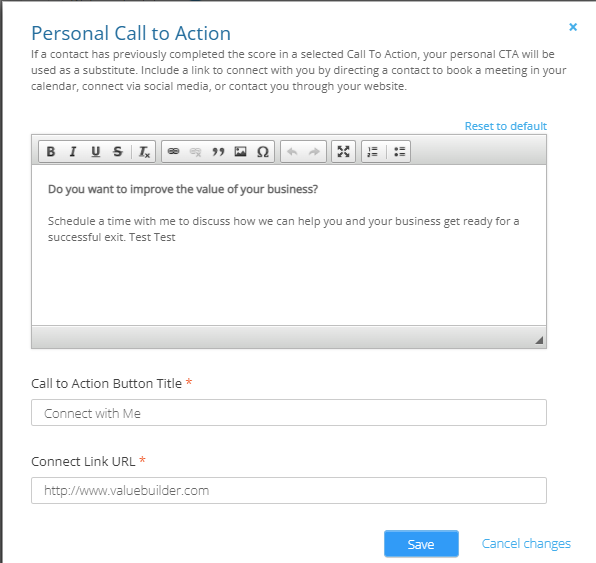
There are 4 types of Call to Action, one for each available Score (Value Builder Score. PREScore™, and Freedom Score), as well as a personal Call to Action. Your personal Call to Action will be used as a substitute in the event that a selected default score CTA has been fulfilled, We will automatically update the Call to Action on the Nurture Cycle email for these contacts to your personal Call to Action. In your personal Call to Action, you may want to provide a link to connect with you by directing a contact to book a meeting in your calendar, connect via social media, or contact you through your website.
If a contact has previously completed the score in a selected Call To Action, your personal CTA will be used as a substitute.
Edit Each Nurture Cycle Email
Once a Nurture Cycle email has been scheduled it will appear in the Dashboard widget. You can tailor each Nurture Cycle email to suit your brand voice by customizing the subject line, email body as well your selected Call to Action.
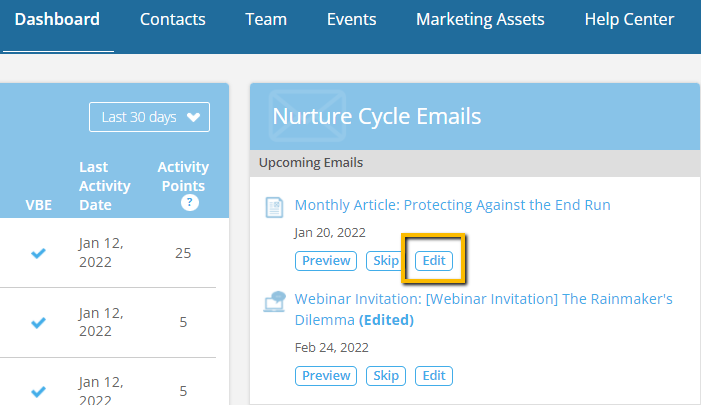
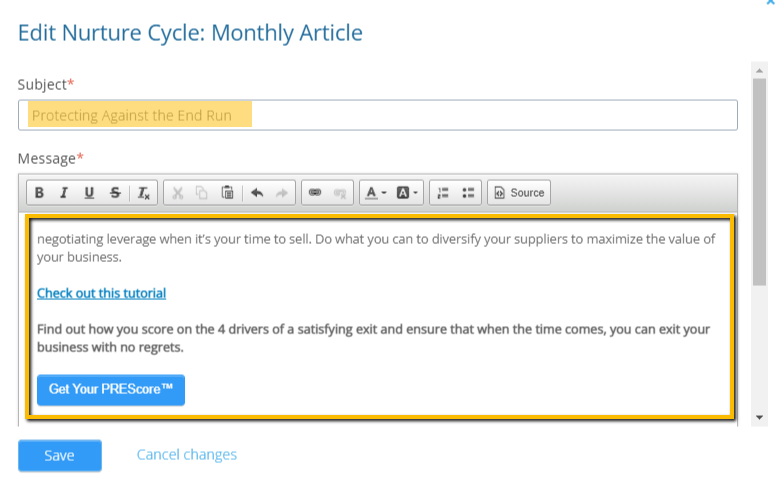
Please note, emails that include links to items configured on the Value Builder side you will not be allowed to edit. These include links to Built to Sell Radio episode pages, webinar invitation registrations etc.
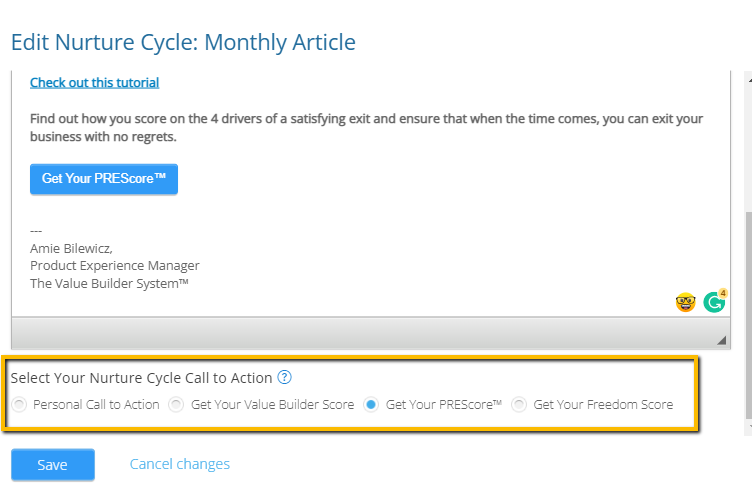
Please note, in order to edit a Nurture Cycle email you must enable your Custom SMTP settings. whereby you grant The Value Builder System™ permission to send Nurture Cycle emails via your service provider. All emails will be sent on your behalf using your registered email address.
View the Latest Nurture Cycle Emails
View the most recent Nurture Cycle emails that have been sent from you to your active contacts.
Nurture Cycle Performance Statistics
For each Nurture Cycle that goes out to your active contacts, you have the ability to review its success.
Click the Performance button on the Nurture Cycle Dashboard widget (note: this will only show after a Nurture Cycle has been sent to contacts and activity has occurred from at least one contact). Here you will be able to see the number of successful deliveries, unsubscribes, and the open rate, click rate, and click-through rate (what proportion of opens lead to clicks).
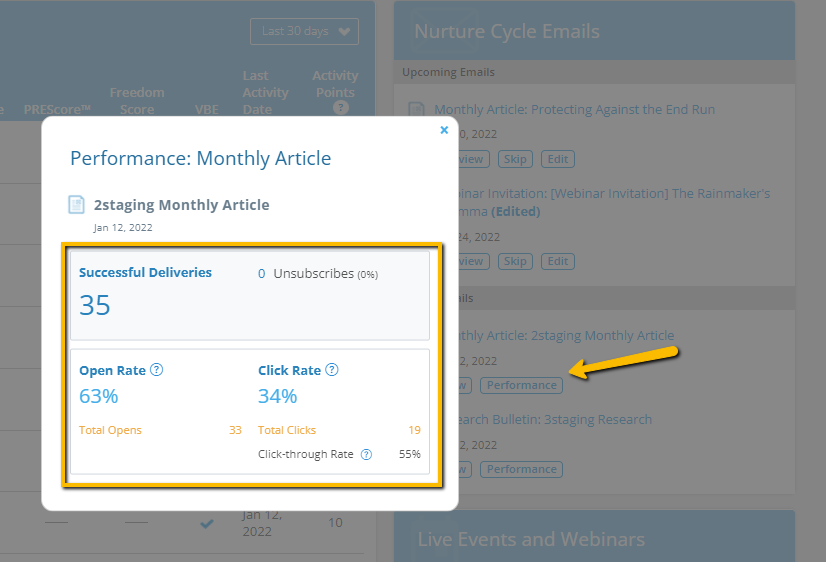
These statistics will provide you with insight into what type of messaging is working and the types of content that are resonating most and receiving the most engagement/activity from your contacts.
Enable or Disable the Nurture Cycle Welcome Email
When enabled, the welcome email is the first email sent to a contact when activated on the Nurture Cycle. You can customize your messaging under Nurture Cycle > Settings in your advisor portal.

If you would like the first email your active Nurture Cycle contacts receive to be our drip content, simply disable the welcome email by unchecking the "Enable welcome email" box in your Nurture Cycle > Settings.
Preview and Skip Upcoming Nurture Cycles
You can now preview and skip individual upcoming Nurture Cycle emails all from your Dashboard. Skipping a Nurture Cycle email means that active contacts will no longer receive the originally scheduled email. Once confirmed, the scheduled email will stop processing for your contacts. Note: the skip functionality is a one-time occurrence and only applies to the skipped Nurture Cycle drip.

Should you want to undo your skip, you can do so by selecting "Undo Skip" from the Nurture Cycle Dashboard widget. Note: the option to undo a previously skipped Nurture Cycle email will only be available in the case where the email sending process has not yet started. If an email is skipped no timeline event will be created.
