Contents
- Contact status
- Display options
- Activate and Deactivate Contacts in the Nurture Cycle
- Individual Contacts
- Bulk Import
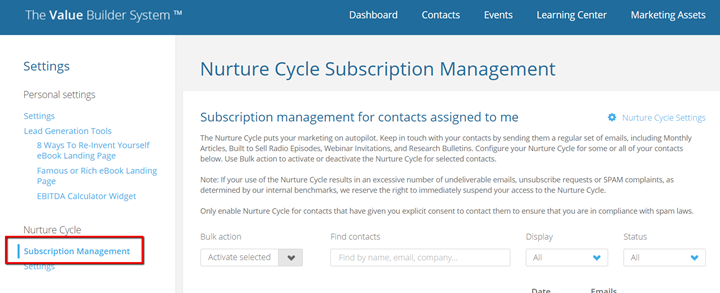
Subscription management is where you can review all your contacts and select which ones you want to include in the Nurture Cycle. You can do this individually or in bulk. Go to Settings > Subscription Management. Once activated, your contacts will begin receiving Nurture Cycle emails.
 Contact status
Each of your contacts has a Nurture Cycle status, and an explanation of what each status means can be found by hovering over the status.
Active status
An active status means that the contact is enrolled in Nurture Cycle and will receive your Nurture Cycle emails.
Inactive status
An inactive status means that the contact has not been enrolled in the Nurture Cycle and will not receive Nurture Cycle emails.
Completed status
A completed status means that the contact has reached the end of the Nurture Cycle, based on your De-activate Nurture Cycle settings. (Go to Settings > Nurture Cycle > Settings to review your selections.) A contact with a completed status will no longer receive Nurture Cycle emails.
Unsubscribed status
An unsubscribed status means that the contact clicked the unsubscribe link from one of your Nurture Cycle emails or made a SPAM complaint and will no longer receive Nurture Cycle emails.
Temporary Failure
Delivery to the contact's email address received an unexpected status or soft fail. Our server will try sending the email again later.
Bounced
We received an active rejection, or "No User Found" error when trying to deliver.
Invalid Email
Email address has not validated and may be entered incorrectly. This contact is enrolled in the Nurture Cycle and will begin receiving Nurture Cycle emails once their invalid email address has been updated.
Display options
Use the Display and Status dropdown lists to view and sort groups of contacts.
Activate and Deactivate Contacts in the Nurture Cycle
To activate or deactivate contacts from your Nurture Cycle, click the check box next to each contact’s name. Then click Bulk action > Activate selected or Bulk action > Deactivate selected.
To select all of the contacts in the list, click the checkbox next to Name.
The portal will let you know how many contacts have been selected on the current page. If you only want to update the contacts from the current page, click Bulk action > Activate selected or Bulk action > Deactivate selected. If you want to include all contacts in the list, click Select all XX contacts from the yellow bar. Then click Bulk action > Activate selected or Bulk action > Deactivate selected.
Individual Contacts
You also have the ability to activate or deactivate one contact at a time. To do that, go to Contacts and select the contact you want to review and/or update.
To activate the Nurture Cycle for a contact that is Inactive, click Activate Nurture Cycle.
To deactivate the Nurture Cycle for a contact that is Active, click Deactivate Nurture Cycle.
Bulk Import
Contacts can be added to the portal one at a time or through a bulk import. To add one contact, go to Contacts and click Add contact. To import a group of contacts from a CVS file, go to Contacts and click Import contacts. When importing contacts in bulk, you have the opportunity to:
- Invite all contacts from the import to complete the assessment
- Activate the Nurture Cycle for all imported contacts
Select the country applicable for the import. All contacts in an import must be from the same country. If you would like to invite or nurture several, but not all contacts from an import, break the import down into batches. All contacts in one import will be treated the same way (e.g., all contacts from one country, all invited or not, all nurtured or not).
Once you have imported your contacts, choose whether or not to activate them in your Nurture Cycle.
To activate the Nurture Cycle for all contacts just imported, click Activate Nurture Cycle.
If you don’t want to activate the Nurture Cycle right away or if you want to activate contacts manually, click Skip this step. You can always activate or deactivate a contact later. Go to Settings > Nurture Cycle > Subscription management to review and update multiple contacts at a time or go to Contacts and select the individual contact you want to nurture