Contents
Learn how to:
b. Review the Accuracy of a Business Owner’s Value Builder Score
c. Select Potential Improvements and Identify Obstacles that Stand in the Way
d. Review Potential Improvements and How They Impact the Owner’s Value Builder Score
e. Use the Value Builder Engagement Roadmap
The purpose of the new Action Planner is to create a focused roadmap for the 12 modules of the Value Builder Engagement. Using this tool, you can review the business owner’s latest Value Builder Score and help them identify the obstacles that are standing in the way of increasing the value of their company.
If you have already worked through all 12 modules, you can use this time to confirm the accuracy of a business owner's latest Value Builder Score results and lay out a focused roadmap for further improving the owner’s Value Builder Score over the next 12 months.
Prior to Starting the New Action Planner
- Share the Module 1 Agenda which outlines the pre-work that a business owner should complete prior to your meeting. This can be found in Contacts > Value Builder Engagement Program > +Module > Meeting Agenda.
- Ask your client to watch the Tutorial videos in Module 1 which explain why getting their Value Builder Score is important and how to improve their score.
- Check your Value Builder Engagement Settings. By default, business owners will not see the Action Planner tool. You can make it visible to owners in the Engagement Settings, or you can toggle it on if you want to use this tool during your session right in the Action Planner tool in Module 1.
- Ensure that you have provided the business owner with their portal login credentials so they can access the Engagement. >> Learn how to Resend Engagement Credentials
Complete the preceding tools in Module 1 with the business owner to set you up for success to use the Action Planner effectively:
- Ensure the business owner has completed their Value Builder Score, which they can complete in The Value Builder Score tab in Module 1. The most recently completed Value Builder Score is used for the plan, so if already completed, you may want to edit it with the owner before starting a new Action Plan.
- Complete Vision Builder with the business owner to define their vision and mission for their company and to set key objectives they want to accomplish during the 12 modules of the Value Builder Engagement Program. In the Vision Builder tab of Module 1, click Create Vision to get started.
How to Effectively Use Action Planner
Follow the steps below to run an effective first Engagement meeting using the new Action Planner:
Start a New Action Plan
If you have not yet started an Action Plan, click Start New Action Plan to create a plan, giving it a custom name of your choice. If you want to edit an existing Action Plan, click Edit on your Active plan under Action Planner History or Go to Action Plan to bring you to the results page with your Engagement Roadmap.
Review the Accuracy of a Business Owner’s Value Builder Score
Click on “View Driver” to reveal the questions and answers that contribute to each of the 8 Key Drivers. Drivers with a star next to them contribute the most points to the overall Value Builder Score.
For each question, you can review the accuracy of the business owner’s original answer in orange and adjust it as necessary by clicking Change Original Answer. This will prompt a pop-up that allows you to select a more accurate answer and update the owner’s Value Builder Score and Report. Click Save to complete change or Cancel to disregard the change. When saved, this will recalculate and update the owner’s Value Builder Score and reflect these changes in the Value Builder Score Report.
Select Potential Improvements and Identify Obstacles that Stand in the Way
The next step is to ask the owner to imagine their business at a future date and select the answer that best represents what they think they can achieve in the next 3-5 years. The original answer is shown in orange. The ideal answer that would improve the business owner’s score the most is in green with the number of points that would be added to the overall Value Builder Score should an owner of chosen the ideal answer indicated beside it.
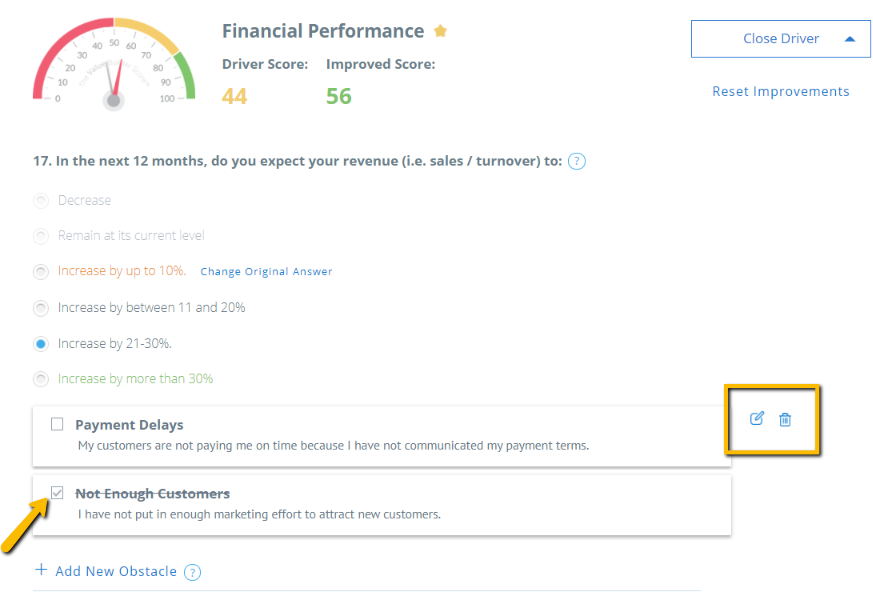
When you select a potential improvement, a pop-up will appear asking an owner to list any obstacles inhibiting them from achieving this potential improvement today. Give the Obstacle a custom name and provide a description of this barrier.
If you would like to add more Obstacles that are inhibiting an owner from realizing their desired improvement, you can click + Add New Obstacle which is found at the bottom of each question within each Driver. By selecting an improved answer, you will see how this change affects the Score for the individual Driver.
To indicate that an Obstacle has been overcome, click the checkbox to mark it as complete. You can also edit and delete Obstacles by hovering over each to reveal the edit pencil icon and trash icon. Any changes made here will reflect in the Engagement Roadmap and Module Obstacles.
 4. Review Potential Improvements and How They Impact the Owner’s Value Builder Score
After clicking next, you can see the business owner’s potential overall score based on their planned improvements against each driver. This is visualized on a dial that points to the owner’s current Value Builder Score as well as their Potential Score.
The owner will be presented with a summary of the improvements they plan to make. Drivers with a star next to them contribute the most to your Value Builder Score.
5. How to Use the Value Builder Engagement Roadmap
Below the owner’s potential score, you will see a roadmap for improving the value of the business through the Value Builder Engagement Program. The obstacles that were identified previously are grouped by their respective modules and can be rearranged in order of their importance of resolving.
Ask your client to think of what obstacles would have the biggest impact on their business if resolved. As an advisor, you can help the owner resolve the top 1 or 2 biggest obstacles they identify that are related to each module as you work through the Value Builder Engagement Program.
To reorder, click and drag an obstacle upwards to show it’s more important to resolve, and down if it is less important to resolve.
Please Note: Module 11: The Short List Builder and Module 12: The Envelope Test have pre-populated obstacles that we suggest for you as they are not part of the 8 Key Drivers. Just as the other obstacles, you can add, reorder them in order of their importance of resolving, edit, or delete them as desired.
In addition, any obstacles that you add in each of the individual 12 modules of the Value Builder Engagement Program will be carried into the Value Builder Engagement Roadmap in Action Planner.
All Obstacles created within an Action Plan will be visible in:
- Each Module, and similar to Action Items are cumulative over all Action Plans. Similar to the Engagement Roadmap and Obstacle may appear in more than one Module.
- In the Goals menu item under the Obstacles tab. Here you can view your Engagement Roadmap with all Obstacles.
- By clicking Go to Action Plan on the Action Planner tab of Module 1: The Value Builder Score. This will show you the Obstacles only for your active Action Plan.
Next Steps: Complete the Goals section in Module 1
Congratulations, you have finished learning how to use Action Planner.
Just as a reminder, you can access the new Action Planner at any time in Module 1: Value Builder Score, or by clicking on Goals > Obstacles from the Value Builder Engagement Program side menu.
In the Goals tab in Module 1, you will help a business owner set realistic target goals based on their fiscal year and monthly target goals. To help the business owner identify what goals to set for the month, you can discuss the top 1-2 obstacles they listed in their Action Plan for the module you are working on together.
For more information on the other tools available to you to kick off your Value Builder Engagement successfully see: How to Effectively Use Module 1